Connecting to Databases Using SQLCMD: A Complete Guide

Introduction
Efficient database connectivity is critical for developers and DBAs. One versatile utility that supports this is SQLCMD. This command-line tool, created by Microsoft, enables users to interact with SQL Server directly through a terminal. Whether you’re scripting deployments or managing databases remotely, SQLCMD delivers simplicity and control without relying on a GUI.
What is SQLCMD?
SQLCMD is a terminal-based tool used for connecting to Microsoft SQL Server and executing T-SQL commands. It supports both Windows and SQL Server authentication, making it flexible for local and remote access. You can run queries, execute scripts, manage objects, and export results—all from the command line or within automated workflows.
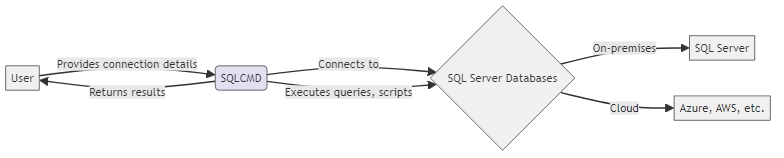
Connecting to Databases Using SQLCMD
To start, you’ll need to provide SQLCMD with the appropriate connection parameters:
sqlcmd -S server_name -U username -P password -d database_name
Here’s what each parameter means:
-S: Server name or SQL instance-U: Username for login-P: Password for the user-d: Target database name
Example:
sqlcmd -S SQLSERVER01 -U admin -P password123 -d AdventureWorks
After connecting, you’ll land in the SQLCMD prompt where you can enter T-SQL statements interactively.
Data Sources Supported by SQLCMD
This utility is designed primarily for Microsoft SQL Server and supports:
- SQL Server (on-prem and cloud)
- Azure SQL Database
- SQL Managed Instance
- Amazon RDS for SQL Server
- SQL Server on Linux
Any service exposing a compatible SQL Server interface can typically be used with SQLCMD.
Security Considerations
While connecting to databases using SQLCMD, always keep security top of mind. Consider the following:
- Authentication: Prefer Windows Authentication for integrated security. If using SQL Auth, avoid storing credentials in plain text.
- Encryption: Use the
-Nflag for encrypted connections and-Cto trust server certificates when applicable. - Least Privilege: Connect using minimal permissions. Avoid using high-privilege accounts unless necessary.
- Input Validation: Sanitize user input in automated scripts to prevent SQL injection risks.
Common SQLCMD Examples
Run a Query:
sqlcmd -S SQLSERVER01 -U admin -P password123 -d AdventureWorks -Q "SELECT TOP 10 * FROM Sales.SalesOrderHeader"
Execute a Script File:
sqlcmd -S SQLSERVER01 -U admin -P password123 -d AdventureWorks -i "C:\Scripts\CreateTables.sql"
Export Results:
sqlcmd -S SQLSERVER01 -U admin -P password123 -d AdventureWorks -Q "SELECT * FROM Production.Product" -o "C:\Output\Products.txt"
Make sure paths, database names, and table names match your environment before running these commands.
Advanced Features and Automation
SQLCMD includes advanced functionality for parameterization, scripting, and error control.
Variable Substitution
:setvar db AdventureWorks
USE $(db)
SELECT COUNT(*) FROM sys.tables
Batch Repetition
sqlcmd -S . -E -i "InsertTestData.sql" -v RecordCount=1000
Error Handling
sqlcmd -S . -Q "SELECT * FROM NonExistentTable" -b
IF %ERRORLEVEL% NEQ 0 ECHO "Query failed!"
Output Formatting
sqlcmd -S . -Q "SELECT * FROM Sales.Currency" -w 200 -s "," -R
These flags are helpful when you need consistent output for logs, monitoring, or batch operations.
FAQ: What Can SQLCMD Do?
It can execute T-SQL queries, run scripts, connect to remote servers, export results, and automate routine database operations. SQLCMD is ideal for DevOps pipelines, disaster recovery automation, and remote server management.
SQLCMD vs Other Tools
SQLCMD is part of a larger toolset for managing SQL Server. Here’s how it compares to other popular options:
| Tool | Interface | Best For | Scripting |
|---|---|---|---|
| SQLCMD | Command Line | Automation, remote access, scripting | ✅ Yes |
| SSMS (SQL Server Management Studio) | GUI | Interactive querying, admin tasks | ❌ No |
| Azure CLI | Command Line | Azure SQL management and provisioning | ✅ Yes |
| PowerShell + SqlServer module | Scriptable Shell | Integrated Windows automation | ✅ Yes |
Example: Automating Secure SQLCMD in Cron
Here’s a real-world example of using SQLCMD securely in a scheduled task (cron job):
#!/bin/bash
export SQLCMDPASSWORD=$(cat /secrets/sqlpass)
sqlcmd -S myserver.database.windows.net -U admin -d SalesDB -N -C -Q "EXEC Report.GenerateDailySummary" -o /logs/daily_summary.txt
This script runs a stored procedure securely over TLS and writes output to a log file. It’s ideal for batch reporting, ETL triggers, or compliance snapshots.
Troubleshooting SQLCMD Connections
Common issues and quick fixes:
- Login failed: Verify credentials and ensure correct authentication mode (SQL vs Windows).
- “Named Pipes Provider” errors: Use TCP with
-S tcp:hostname,port. - SSL errors: Use
-Nto encrypt, and-Cto bypass invalid cert warnings in dev. - “Invalid object name”: Double-check database and schema context with
USEand-d.
Policy-Driven SQLCMD with DataSunrise
Pairing SQLCMD with DataSunrise gives you enforcement, audit, and masking for any SQL script run via the CLI. For example:
- Mask sensitive columns in exported reports without modifying SQL
- Log all access to sensitive tables triggered by automated jobs
- Enforce compliance without changing your existing SQLCMD automation
This setup is ideal for production environments that need to balance flexibility with strict data governance.
Conclusion
Mastering connecting to databases using SQLCMD gives you direct, scriptable control over your SQL Server environment. From query execution to automation, it remains a valuable part of every DBA’s toolkit.
Security, flexibility, and simplicity make SQLCMD a perfect fit for batch processing, integration tasks, and environments where GUI tools are not an option.
If your data security needs go beyond query access, check out DataSunrise. Our platform offers advanced data masking, compliance enforcement, and auditing across database types. Request a demo to see how we can secure and streamline your workflows alongside SQLCMD.